How to use ankieditor — bring a template in from Anki and edit it the easy way, one real screenshot at a time. A text-only summary lives on the Guide page.
1. Copy your template from Anki
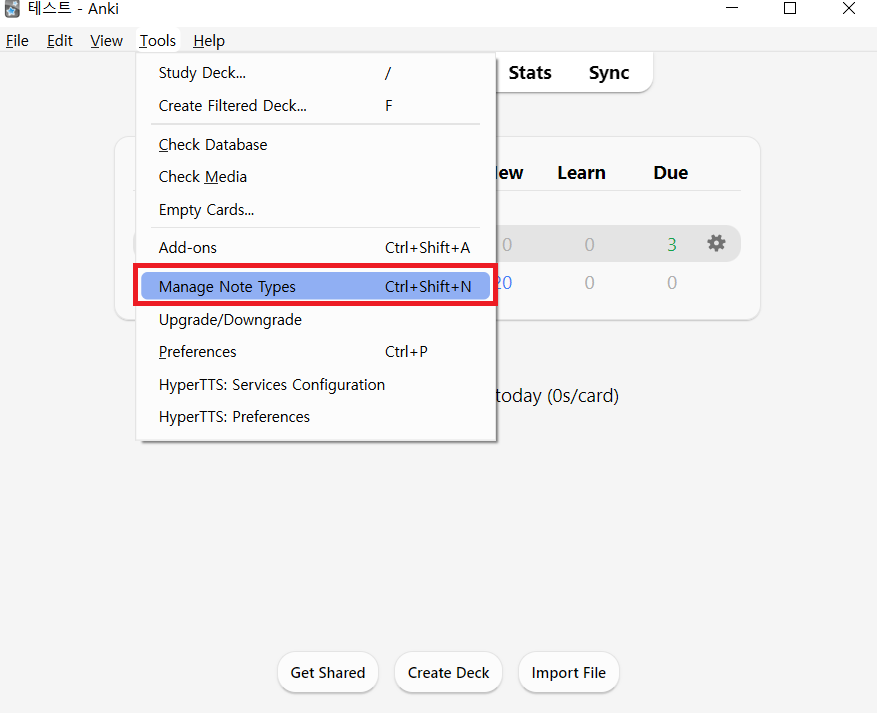
In Anki, open Tools → Manage Note Types.
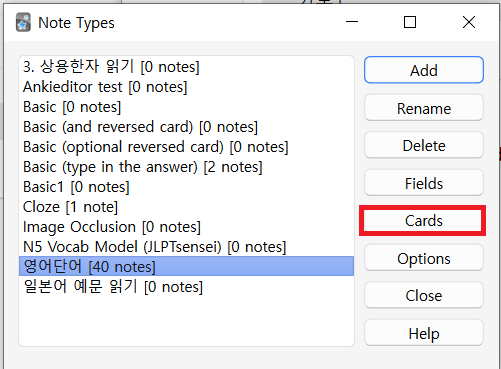
When the note types window appears, click [Cards...].
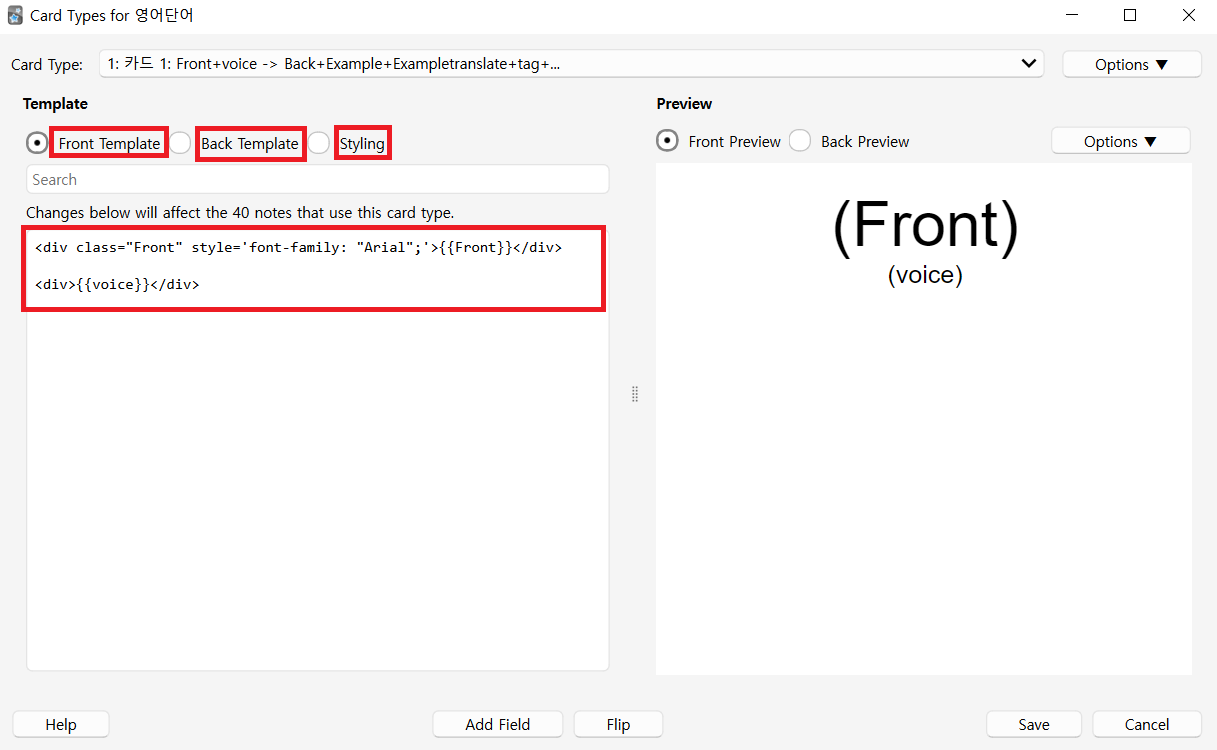
On the card types screen that opens, copy the code from all three panes: Front Template, Back Template, and Styling.
2. Paste it into the editor
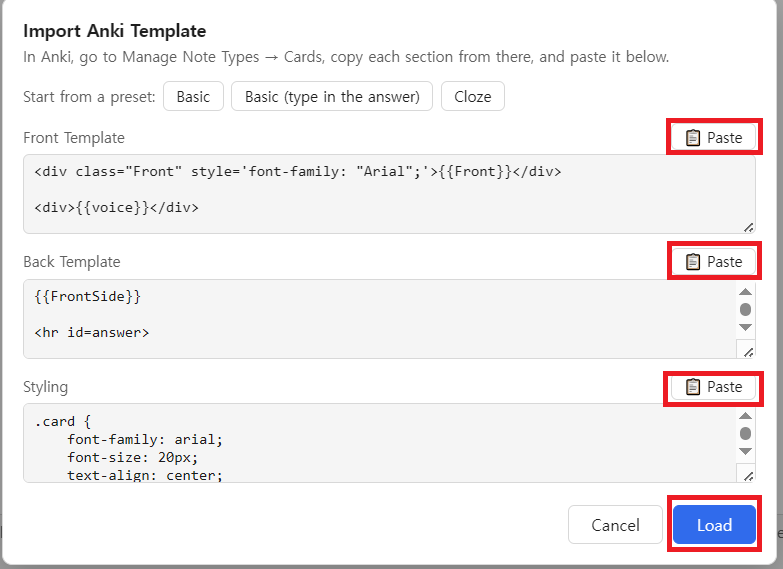
Click [Import] at the bottom of ankieditor's left panel.
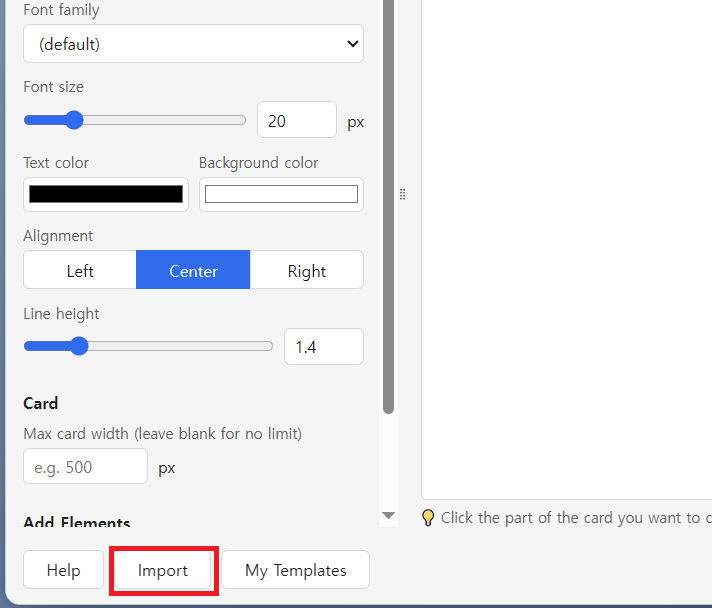
Paste the code you copied into the matching fields of the import dialog, then click [Load]. The [📋 Paste] button next to each field fills it in automatically from your clipboard.
3. Click to style
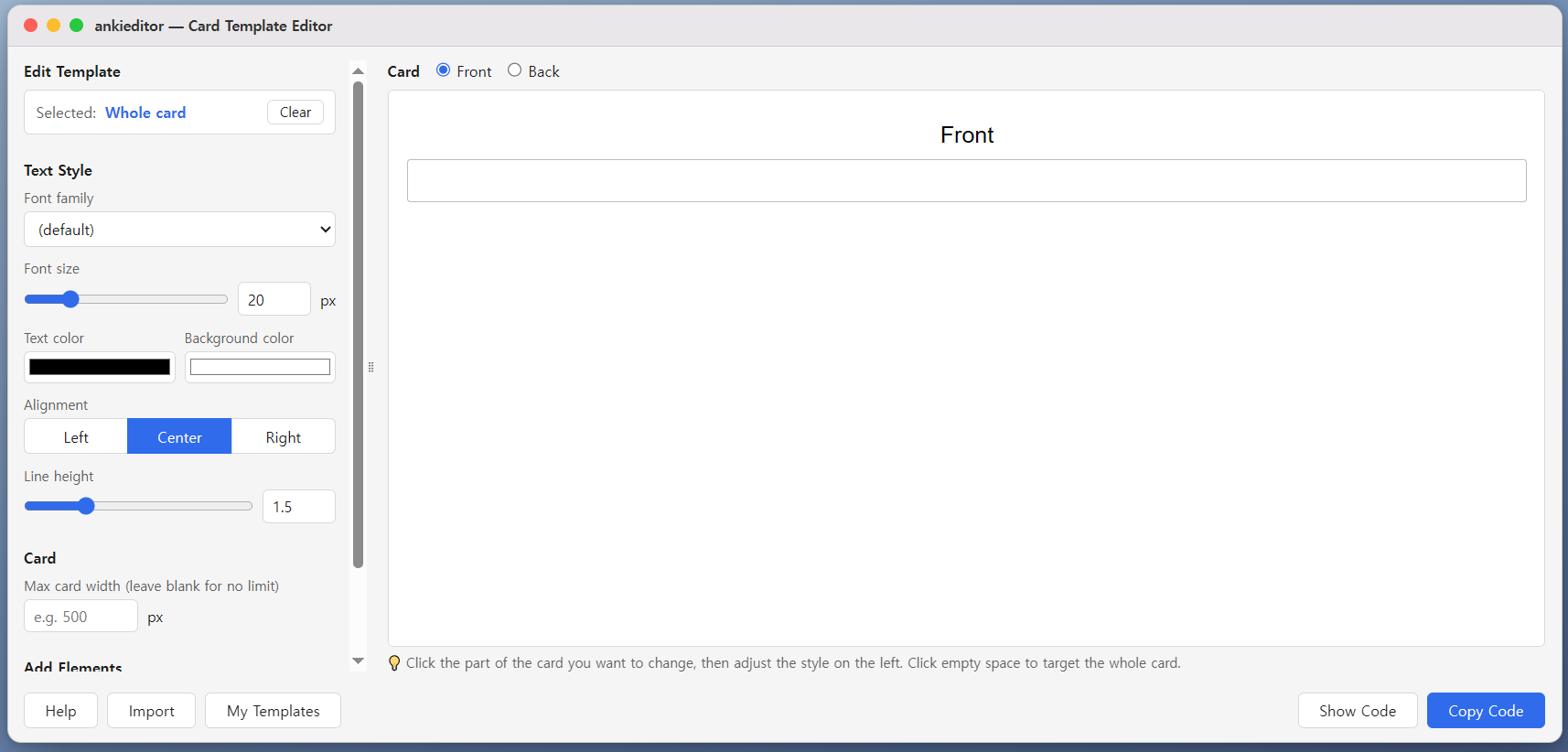
Click whatever you want to change in the card on the right to select it, then use the left panel to adjust the font, size, color, alignment, and line spacing. Click an empty area to target the whole card instead.
4. Copy the code back into Anki
Click [Copy Code] to open a menu where you can copy the Front Template, Back Template, and Styling separately.
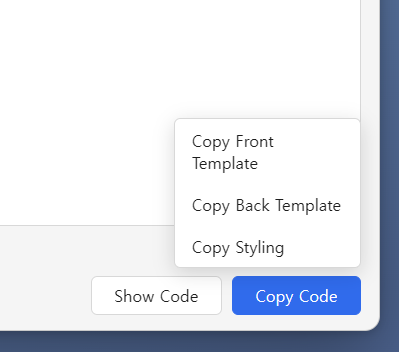
Copy each one, paste it into the matching pane on Anki's card types screen, and save — that's it. The editor preserves your original template's line breaks and formatting as closely as possible.